Download

Learn

The Whole Room

Built for everyone else keeping the show alive: the cue sheet, live estimates, crew pages, phone remote, NDI, runlists, Stream Deck rigs, and your pre-show safety net. These are the exact scripts you'll read on the prompter inside the app, laid out here as a reference page. Inside Cadence, just hit Play, read along, and pause at each Your turn to try it live. Practice is always optional.

  1. The cue sheet and Coming up 4-5 min
  2. Over, under and the pace 4-5 min
  3. The crew's page 4-5 min
  4. Phone remote and Anywhere 2-3 min
  5. NDI pictures 3-4 min
  6. Runlists and master scripts 4-5 min
  7. Cue to cue and Snap to stanza 5-6 min
  8. Make the deck yours 4-5 min
  9. Print, back up and go live 4-5 min

← All the series

Module 1

The cue sheet and Coming up

About 4-5 minutes

Welcome

Welcome to The Whole Room—
a prompter built to be just as good for the crew behind the scenes as it is for the presenter on stage.

By now, you already know how to prep a script and run a show.
This series is about everyone else in the room.

Sooner or later, the crew is going to ask you two things: how much time is left, and what’s coming up next.
Why hire an operator who can’t tell them?

Just like before, whenever you see YOUR TURN, go ahead and pause to try it out.

The cue sheet

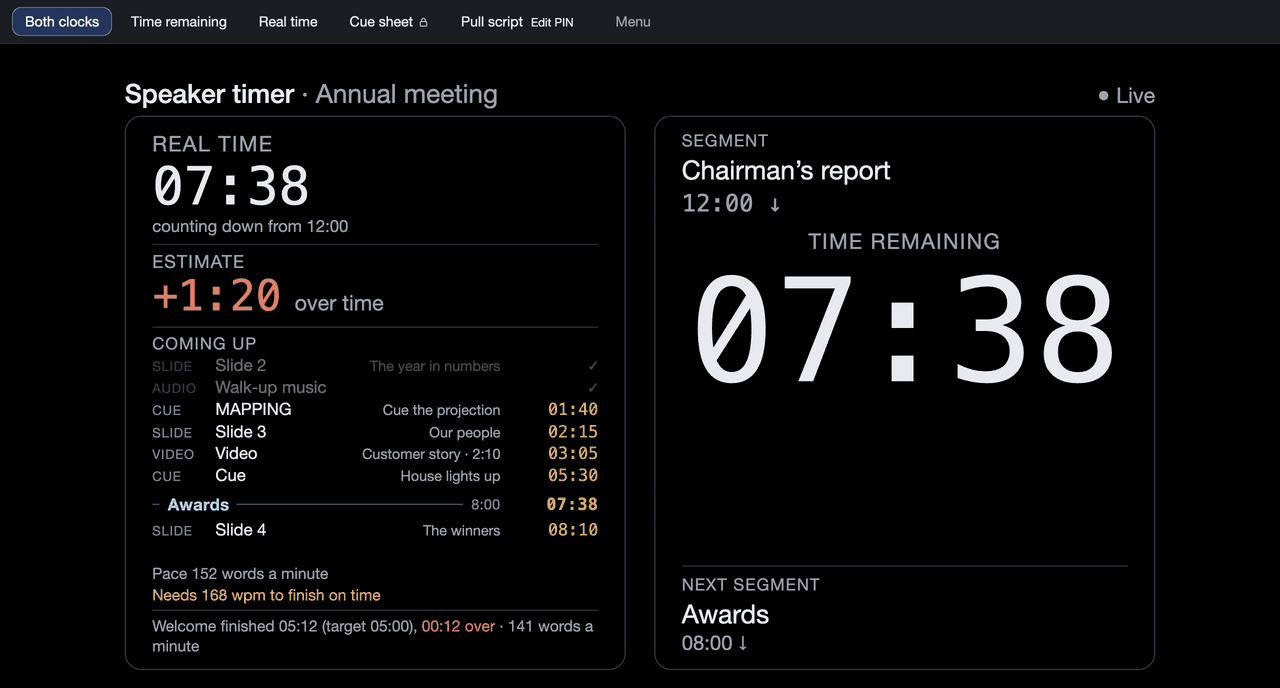
Every single cue you drop into the script automatically becomes a row on the cue sheet.
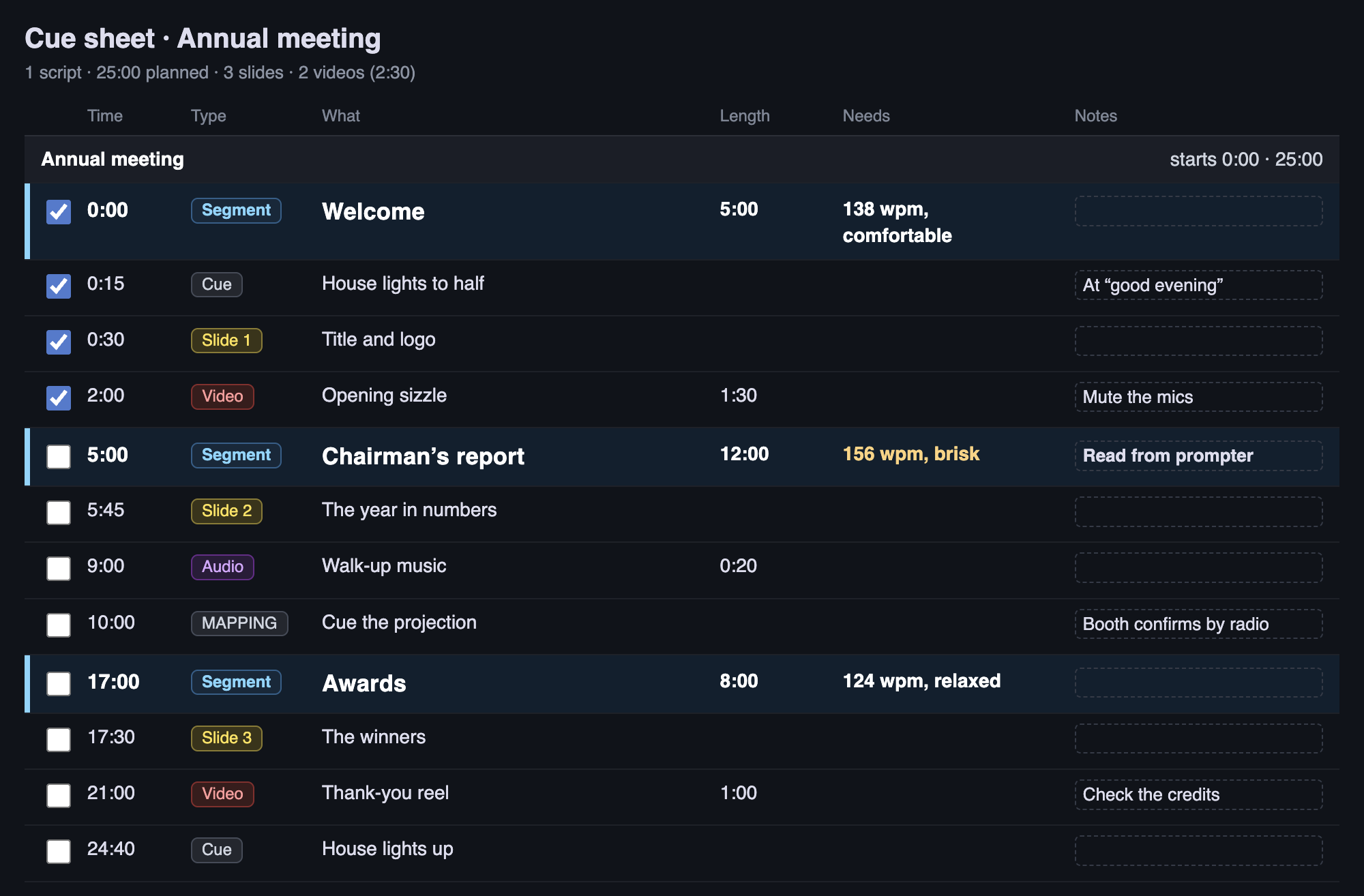
You’ve got columns for Time, Type, What, Length, Needs, and Notes—
plus a Ready box that turns the entire row red the second someone unticks it.
Better yet, it covers every script in your open runlist.

Because you already took the time to write the cues once,
the cue sheet builds itself—and it’s never out of date.

A producer who gets a clean rundown with zero extra typing is going to remember your name.

You can open the cue sheet anytime from the Collaboration drawer, or from Collaboration, then Cue sheet, in the menu bar. It opens as a tab beside Script.

Save Cue Sheet… exports it straight to a PDF,
and Copy Cue Sheet lets you paste it right into an email.

Toggle on Include Last Run, and it even pulls in the actual times from your last run-through.

Your turn Open the cue sheet. Add a cue to this script, then open the sheet again

Coming up

Right inside the editor, Coming up shows you the next cues in line while you read.
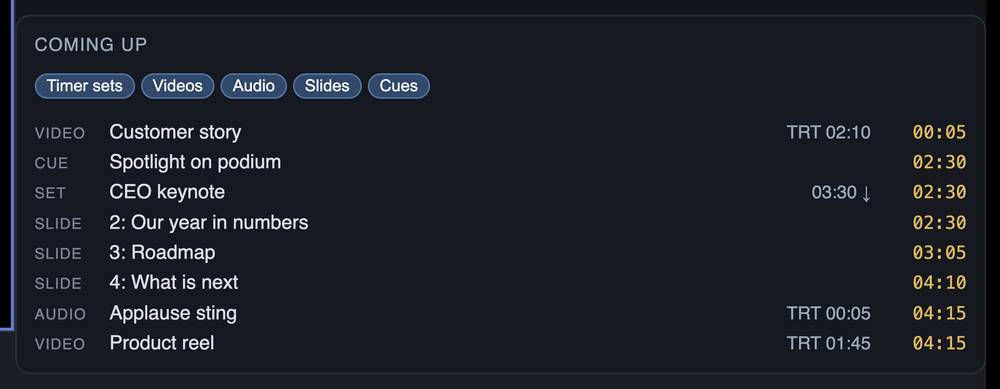
A quick filter lets you pick exactly which types of cues show up—
so you never lose your place in the show,
and neither does anyone looking over your shoulder.

Slide cues even suggest the next slide number automatically,
and Number Slides… keeps everything cleanly in order after a round of edits.

Slides always get shuffled around the night before—
this keeps your numbers honest.

Your turn Find Coming up in the editor and change which kinds it shows

When you’re ready, press for the next module.
Module 2

Over, under and the pace

About 4-5 minutes

The question

How much longer do they have?
How long did that last segment actually take?

The presenter asks it silently every time their eyes dart to the clock,
and the crew asks you over headset.

Cadence answers both—
before anyone even has to ask.

The estimate

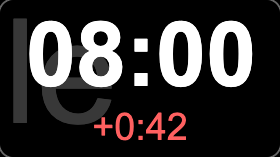
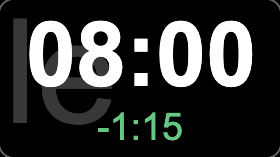
The estimate tells you right away whether you’re running over or under.

It calculates that live from the speaker’s pace so far, and how many words are left until the Finish cue.

Over is red.

Under is green.

A presenter who sees green relaxes.
A presenter who sees red picks up the pace—
without you ever having to say a word.

No numbers

Of course, some presenters don’t want numbers staring back at them at all.
For them, just switch Estimate shows over to Pace hint.

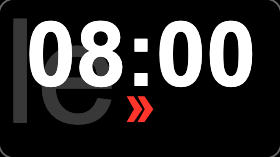
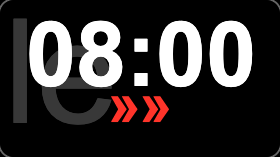
Instead of numbers, red chevrons gently show how far over they’re trending:
one chevron for more than fifteen seconds,
two for more than thirty,
and three for more than a minute.

They match the exact math behind the scenes, and they stay up until the speaker brings it back on target.

Sometimes a quiet visual nudge is a whole lot easier to take than a ticking number.

Your turn Open the Timer drawer, set Estimate shows to Pace hint, then set it back

A clip they skipped

Now suppose you’re in rehearsal and you skip over a video clip.
Without an adjustment, the estimate would think the presenter is flying through the script faster than they really are.

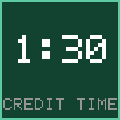
That’s what Credit time remaining is for—
it adds the clip’s running time right back into the math.

You can also hit ⌘⌥G (Ctrl+Alt+G) to do the exact same thing.

After the show

Every finished segment gets logged automatically with the script.

Open Run history…
in the Timer drawer, and you’ll see every single run—
rehearsal or live show—
complete with your notes.

From there, you can export them as a CSV, or as a clean PDF that looks just like the window.

A rehearsal that runs long isn’t a problem—it’s a gift,
because you found out before the show.

Your turn Open the Timer drawer and press Run history…

When you’re ready, press for the next module.
Module 3

The crew's page

About 4-5 minutes

Everyone sees the same thing

Everyone working off the same script, the same clock, and the same cues—
that’s the whole idea.

Open the Collaboration drawer…

Then turn on Local network.

That switch resets to off every time you launch Cadence,
so nothing ever gets shared until you say so.

The moment it’s on, anyone on your network can open a live web page showing the clock, what’s coming up next, and the full cue sheet.

Your turn Turn on Local network, open the address on your phone, then turn it off

PINs

The View PIN is what lets people look.

The Edit PIN lets crew members check off a row or drop a note on the cue sheet—

Without an Edit PIN, nobody can change a thing.

The crew page can’t control your prompter,
so a curious thumb can’t do any harm.

The script page

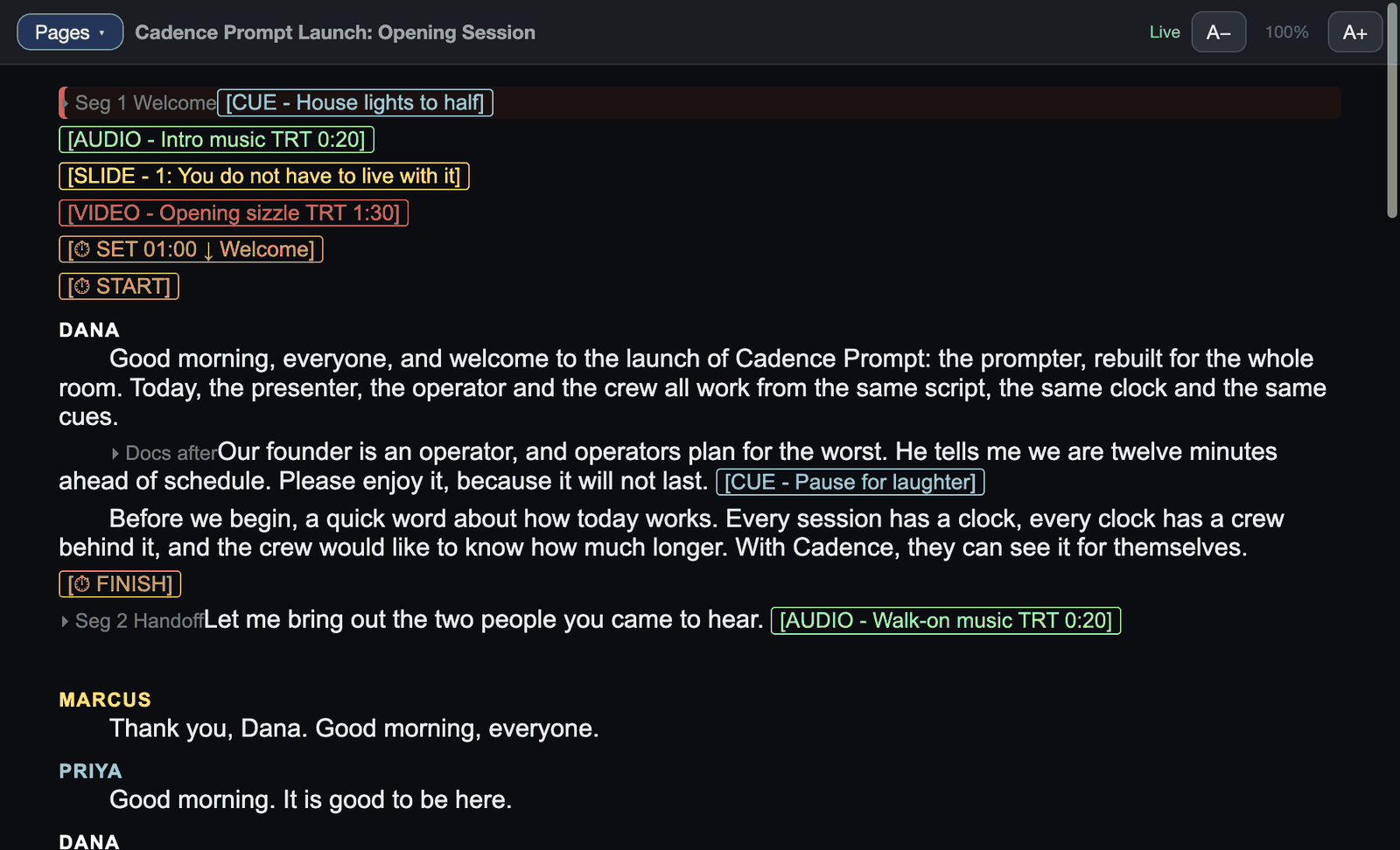
Turn on script text sharing, and the crew can read along right on their computer or on their phones—
in the script’s actual colors, at whatever zoom level works best for them.

It follows your prompter live while the show rolls.
If they scroll away to look ahead, it pauses following—
and one tap snaps them right back to live.

Anyone with the Edit PIN can even leave a suggestion right on a specific line…

…and you can review it, then accept or dismiss it with a click.
This feature is brand new—
so let me know how it feels on a real phone.

Your turn Find the sharing switch for the script text in the Collaboration drawer, and leave it off

Pull a script

Hit Pull script on the crew page, and they can download the script exactly as it stands right now—as a PDF or a Word file.

If you’ve set a Show Files folder, anyone with access can pull any script in that folder at any time—even while the show is live.

And Cue sheet right beside it opens the live rundown.

Nobody has to bug you for the latest version,
and you don’t have to stop what you’re doing to send it.

When you’re ready, press for the next module.

Module 4

Phone remote and Anywhere

About 2-3 minutes

A remote in your pocket

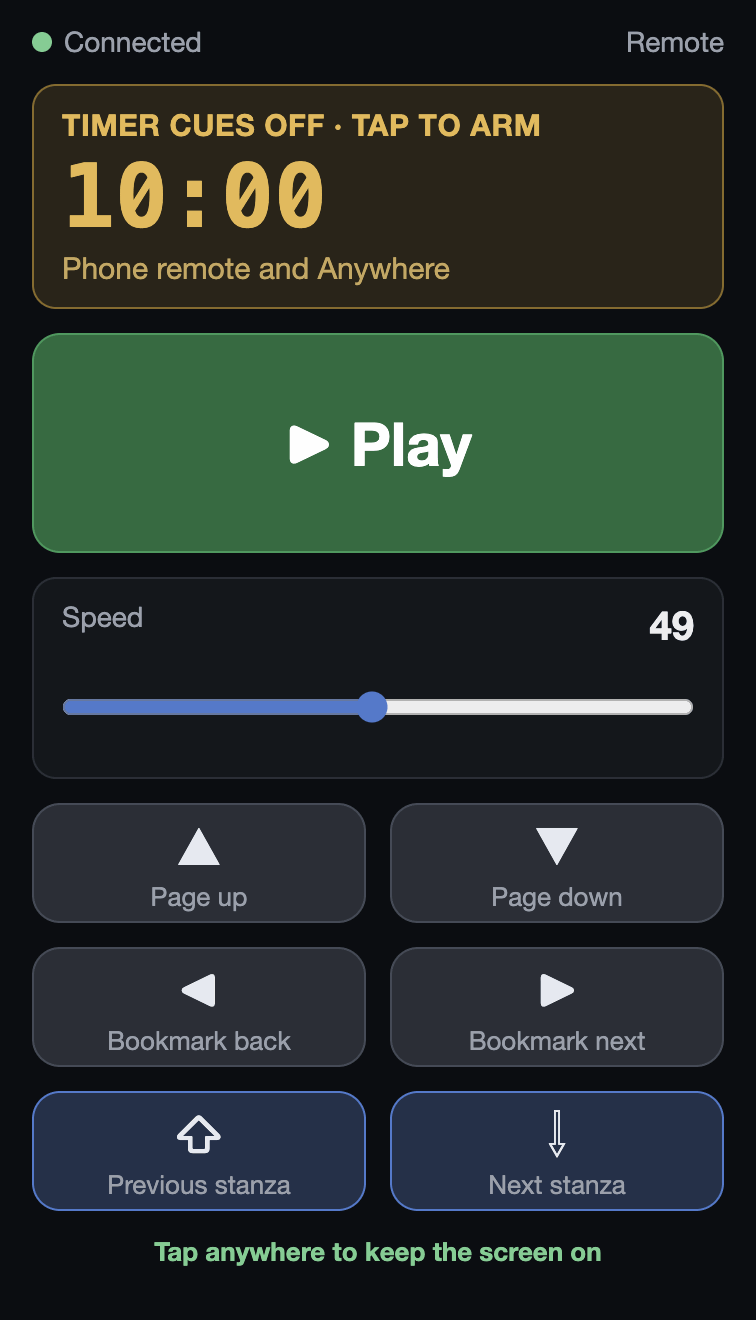
Your phone can double as a wireless remote.

Right from your screen, you’ve got play and pause,
a smooth speed slider,
rewind and fast forward,
bookmark jumps, and stanza jumps when your script has stops.

It has its own dedicated switch in the Controllers drawer—
Phone remote—
and its own separate PIN.
Just like network sharing, it starts off every time you open the app,
and that Remote PIN won’t unlock anything else. It needs Local network to be on, too. When the script has timer cues and they are off, the timer block turns amber: tap it to arm them.

Use it when you need to stand right beside the presenter during a walk-through,
or run a rehearsal from the back of the room.

Your turn Find Phone remote in the Controllers drawer, and leave it off

Anywhere

Those crew pages aren’t limited to the local network—
they can go right over the internet, too.
Your show gets its own dedicated web address,
giving remote phones the exact same View, Script, Timer, and Menu pages.

All the same PINs still apply,
so a crew member checking in from a hotel room can have the same access as someone sitting right beside you in the venue.
It’s up to you.

Open the Collaboration drawer and look for the internet switch.

Producers who aren’t in the building can see the script and the clock.

That opens the door to a whole new kind of show.

When you’re ready, press for the next module.
Module 5

NDI pictures

About 3-4 minutes

The clock on the switcher

Cadence can send its feeds straight onto your network as NDI sources—
meaning a video switcher, streaming software, or a multiviewer can pull them right in.

You’ve got two sources to work with:
Cadence Timer,
and Cadence Prompter.

Quick note: NDI requires the free NDI Tools from ndi.video.
If they aren’t installed yet, those switches will be grayed out and the line underneath will let you know.

Nothing goes out over the network until you flip a source on,
and every source resets to off whenever you restart the app.

Cadence Timer

First up is Cadence Timer—
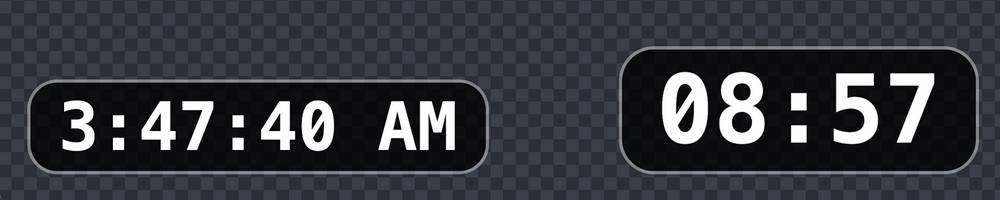
that puts the speaker’s clock, plus time of day if you want it, on a clean transparent feed.

You can run it as a Pill—a compact clock in a rounded box—
or as a Strip, which is a full bar showing the segment name, the clock, and the estimate.

Pick from Dark, Light, Text only, Solid,
or Text on green if your switcher prefers to chroma-key.

True time gives you the real segment clock for a multiview,
while Presenter’s time matches what the talent sees for a confidence monitor.

You can even set a Warning color for the final stretch of a segment.

The director sees the warning pop on the program feed,
while the talent’s clock stays calm and unchanged.

Your turn Open the Timer drawer and find the NDI picture group

Cadence Prompter

The second source Cadence Prompter sends over NDI is what the talent sees—
the live script and the reading line.

It’s an opaque feed ready for a confidence monitor or a stream.

It’s the heavier of the two,
though 1280 by 720 at 30 frames per second keeps things nice and light if your network can’t handle a larger resolution.

In the Show drawer, under NDI, hit Check this machine to spin up every active NDI output at your chosen settings,
so you know your computer can handle the load well before showtime.

Hit that button, roll the script, and read the verdict.

When you’re ready, press for the next module.
Module 6

Runlists and master scripts

About 4-5 minutes

Shows are more than one script

A runlist lines up all your scripts in show order,
so the prompter flows smoothly out of one and straight into the next—
while every script still keeps its own clock.

Go ahead and open the Runlist drawer.

Click New runlist to start one with your currently open script,
then use Add scripts…
to stack more right behind it.

Use the arrows on any row to reorder things, and the cross to pull a script out.

If a script ever gets moved or deleted on your drive, it stays right there in the list marked missing—
Cadence will never silently drop it on you.

Your turn Open the Runlist drawer. If you came here with Next script, you’re in a runlist now

Moving through it

Next script jumps straight to the top of the next script in line,
and Previous takes you back.

If you’ve been following these modules with a Stream Deck, you’re already familiar with the Next script button . There’s a Previous button as well for you to place in the Stream Deck tab.

The keyboard shortcut for Next script is ⌘⌥] (Ctrl+Alt+]).

Carry on

Turn on Carry on into the next script, and the prompter rolls seamlessly across the finish line into the next script on its own.

Turn it off, and the prompter stops cleanly in black at the end of each script and waits for you to hit Play.

And remember, Top and End always keep you inside the script you’re currently running.

Your turn Press Previous, then Next, and watch the open script change

Hand it off

Under Hand off, Export package
bundles your runlist and a copy of every script into a single folder.

Run Import package
on another machine, and it pulls the whole show in and opens the runlist ready to go.

That’s the cleanest way to hand off your show to the backup computer.

One master script

Sometimes you just want every script stitched together into one master document.

Tap the numbers beside the scripts in your runlist and hit Make master….

Cadence shows you the order and previews exactly what stitching will do—
each script gets its own segment cue and named bookmark,
and speaker styles are matched automatically by name.

From there, save it as one combined Cadence script, or export it straight to Word, PDF, or plain text.

The crew can even build a master script from the Pull script page if they have the Edit PIN.

When you’re ready, press for the next module.
Module 7

Cue to cue and Snap to stanza

About 5-6 minutes

Cue to cue

Cue to cue (Q2Q on the buttons) lets you hop cleanly from one cue straight to the next,
moving both the prompter and your editor right along with it.

You pick which cue types it stops on inside the Q2Q stops window, and the script remembers your choices.

It’s a rehearsal’s best friend—
skip right past the talking,
and verify every single slide and video in minutes.

Start with slides and videos—that’s where most technical rehearsals live.

Your turn Open the Q2Q stops window and look at the kinds it offers

Hymns and songs

Now let’s talk about segments built out of stanzas—like lyrics, hymns, or readings—
where the current stanza needs to sit right at the top of the screen while the next one waits below.

Snap to stanza handles that effortlessly:
press a SNAP button, and the next stanza glides straight to the top.

Cadence reads stanzas directly from your script—
any block of lines separated by blank lines.

A label sitting right above it, like Chorus or Verse 2,
automatically stays attached to the stanza underneath.

You don’t need any special markup—
just paste in the lyrics or script with its blank lines, and you’re good to go.

There’s no separate “Snap mode” to remember.
A line snaps whenever its own setting—or its speaker style—tells it to.
Inside Speaker Style, every style has a Snap toggle, which is perfect for something like a Choir style.

Or, in the Text drawer, Snap these lines lets you choose Snap, No snap, or Automatic—
and if nothing is selected, it’ll ask if you want to apply it to the whole script.

One undo puts it back.

Snap to stanza is in the command search, too.

Playing into a run of stanzas, the speed drops to zero and the first stanza glides to the top.

From there, the SNAP keys are yours.

Turn the speed up again when you’re ready to read.

Your turn Scroll to the START mark, then SNAP NEXT to use Snap

A stanza too tall for the display gets stops of its own.

Each SNAP key shows the next part, and then moves on to the next stanza.

Want to place a stop somewhere specific?

Drop your cursor right in the line and choose or press on a Stream Deck.

This splits cleanly at that exact spot.

Find page breaks… scans for sentence endings and breaks them into clean lines for you,
letting you review each one before it changes.

Turn on Show stops to see a small amber mark in the margin at every stop. In Editor is on to begin with and On Prompter is off, so the presenter never sees them:

START and LAST mark where your snap keys take over, and where you’ll start scrolling again.

Run through a hymn once with your stop marks visible,
and you’ll know the exact beat where every single SNAP lands.

When you’re ready, press for the next module.
Module 8

Make the deck yours

About 4-5 minutes

Anything you do twice

Your Stream Deck is completely yours to customize.

Open the Controllers drawer , press Open the Stream Deck tab, and your deck appears on screen, one page at a time.

Drag any action from the list straight onto a key or dial.
Drag one key onto another to swap them,
or drag it back onto the list to clear it out.

Stream Deck rigs… opens up the full rig editor.

Good rule of thumb: anything you find yourself doing twice deserves its own key.

Bold, Italic, Underline, Clear formatting, Speaker Style, and Previous script can all live right on your deck too.

Your turn Open the Controllers drawer, press Open the Stream Deck tab, and look at your deck on the screen

Keys with settings

Some keys even carry their own custom settings.
Drag COLOR onto a key and pick what you want it to change—
the text color, the background, or both.

Set it to both, black on yellow, and your key looks just like this:

One press, and your selected words are highlighted on the spot.

The very first annoyance I fixed for myself was having to make five clicks just to color a cue.
Now it’s one single button.

Cue keys work the exactly the same way.
Drag Cue onto a key, label it SLIDE, make it yellow—
and now one tap drops a slide cue right at your cursor.

Your turn Put a COLOR key on your deck, set it to both, black on yellow, then select this line and press it

Pages and rigs

You can add extra pages to your Stream Deck with + page and name each one—
with its own set of buttons and dials.

Even better, you can save multiple rigs—Office, Studio, Travel, whatever you run.

Every key is framed in the color of its category, so your eyes can spot what you need in a split second.

And if you use other knobs or keypads, Cadence supports those too—
just check the Other devices tray inside the Controllers drawer.

A great operator is one who keeps every control right under their fingertips.

When you’re ready, press for the next module.

Module 9

Print, back up and go live

About 4-5 minutes

On paper

Let’s be honest—some people just don’t trust a screen.

Head to File, then Print Script…
and you get a clean printed copy with all your colors, highlights, and images intact.

Right alongside it in the same menu, you’ve got Save Script as PDF…
Save Script as Word Document…
and Save Script as Text….

Copy Script as Formatted Text lets you paste straight into an email, colors and all.

And your cue sheet exports just as easily—
either as a PDF or a spreadsheet.

Print a copy for the person in the room who still trusts paper more than pixels.

Your turn Save this script as a PDF and open it

It looks after you

Behind the scenes, Cadence autosaves as you type and maintains a dedicated Backups folder.
Versions… holds onto every version you bring in,
with a recovery file sitting safely behind both.

And every finished segment is logged right in your run history.

If anything ever does fail, there’s always a safety net waiting behind it.

Before you go live

Before you go live, open the Show drawer and hit .

It walks you straight through Do Not Disturb, notifications, and power settings.

Keep awake makes sure your display never goes to sleep while Cadence is running,
and Raise together brings the operator and prompter windows to the front as one.

Nothing ruins a show day faster than an unexpected software update popping up on the prompter.

Your turn Open the Show drawer and press Checklist…

Everything inside Cadence is built to serve three groups: presenters, operators, and the crew.

The three promises

Presenters served—
stepping up to the podium with total confidence, knowing their words are right where they need them, their pace is guided, and their message lands.

Operators elevated—
prepping in minutes, then running the room with full control right under your hands.

Crews, shows, and events made better—
one show, one source of truth.

When the prompter does its job right, it almost goes completely unnoticed.

Tell me what’s working and what still needs fixing—
and I’ll be right here to make it right.
Founder

And that is the whole room.
Hit Top twice to run it again, or open up a fresh script and put it to work.